
Blockchamp Vs Blocksite

Choosing between BlockChamp vs BlockSite isn’t really a contest between a crown and a website with “block” in its name. It’s a choice between two different approaches to managing distractions: one focuses on blocking websites with practical controls, while the other tries to make focus feel more like a game. The best option depends on what keeps pulling you off task—and what might actually help you stick with your plan.
Both tools can help you limit access to distracting sites. But their features, platforms, motivation systems, and overall feel differ. Here’s a straightforward comparison, including what to look for before you install either one, where BlockChamp stands out, and how to build a blocking setup you won’t uninstall the moment a video thumbnail looks interesting.
Quick Answers
BlockChamp vs BlockSite: the quick comparison
BlockSite is a website- and app-blocking product designed to help people restrict distracting online content. Its options and availability can vary by platform and plan, so check its current product pages or app listing for details before choosing. The general appeal is practical: define what you want to block, then use the available controls to limit access.
BlockChamp is a gamified website blocker for Google Chrome. It lets you block individual sites, distraction categories, and—on its Champion plan—keywords. The blocking is paired with XP, levels, badges, reigns, a focus calendar, and a leaderboard. When you try to visit a blocked site, The King, a cartoon royal boxer, delivers a full-screen stare-down. He is not subtle. He is, however, memorable.
- Choose BlockSite if its current platform support and blocking controls fit your devices and you want a more conventional blocking tool.
- Choose BlockChamp if you use Chrome and want blocking combined with game-like progress, humor, and optional friction before turning focus off.
- Choose either cautiously if you need strict, reliable blocking across multiple devices or browsers: verify exactly what each product supports on your setup first.
A blocker can reduce easy access to distractions, but it cannot decide what deserves your attention. Your tools are the guards at the castle gate; you still need to tell them which visitors are causing trouble.
What matters most when you compare website blockers?
It’s easy to compare apps by the length of their feature lists. It’s more useful to ask how you’ll use one on an ordinary Tuesday, when you have a deadline, low willpower, and three tabs open that have nothing to do with the deadline.
1. Where do you need blocking?
Start with your devices and browsers. BlockChamp is available as a Google Chrome extension. If your main distraction problem happens while you’re working in Chrome on a computer, that may be enough. BlockChamp’s roadmap includes iPhone and Android apps, but they are coming soon—not a current feature.
BlockSite supports multiple product experiences, but the exact functions and availability can depend on platform, operating system, browser, and plan. Confirm the specific combination you need: desktop browser, phone, tablet, and whether blocks can be coordinated across them. “Works on my devices” is a better buying question than “has a lot of features.”
2. What do you want to block?
Some people need to block two familiar culprits: say, Reddit and YouTube. Others need a broader net covering social media, video, news, shopping, gaming, or AI tools. Look for the blocking methods that match your habits, including individual websites, categories, keywords, schedules, and any cross-device controls you require.
3. What happens when you want to quit?
This can matter more than the block page itself. If you can disable a blocker instantly, a passing impulse can become a five-hour browser safari. Some people need only a gentle reminder; others benefit from a pause or deliberate step before changing settings. Be honest about which person you are. There is no medal for pretending a one-click escape will not tempt you.
For a broader look at how reward systems can support attention habits, see BlockChamp’s article on why game-like rewards can work better than relying on willpower alone.
Blocking features: simple lists, categories, and schedules
BlockSite’s specific blocking options should be checked against its current plan and platform details. In general, a conventional blocker can be a good fit when you know which sites you want restricted and prefer to manage those rules directly. Before committing, test your most important websites, confirm how schedules work, and check whether the product handles subdomains or alternate versions of sites the way you expect.
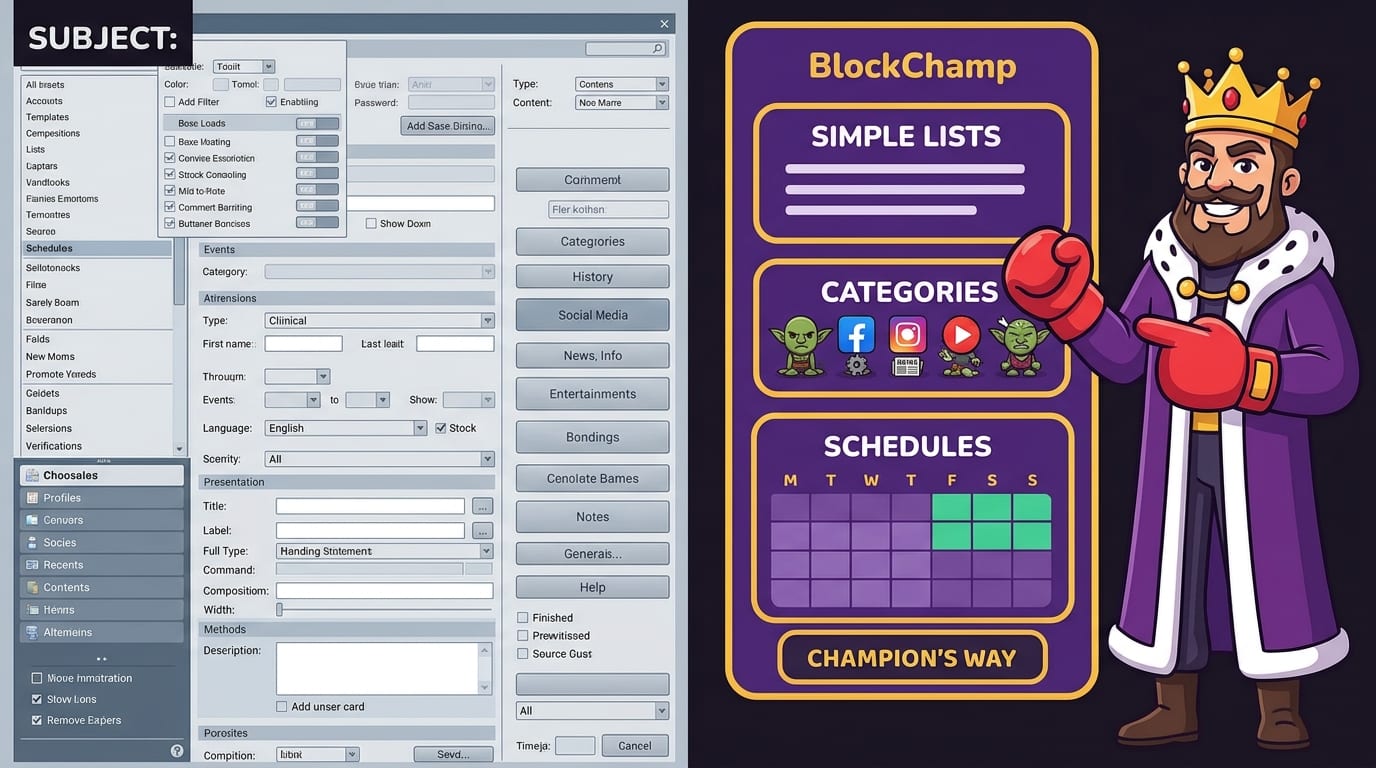
BlockChamp offers three ways to set up restrictions in Chrome:
- Block by site: Add specific websites such as YouTube, Reddit, or X. The free tier allows up to three sites; Champion allows unlimited sites.
- Block by category: Choose curated bundles for Social Media, Video and Streaming, News, Shopping, Gaming, Gambling, Adult, and AI Distractions. Free users can enable two categories, while Champion users can access all eight.
- Block by keyword: Champion users can block pages when selected terms appear in the web address, page title, or page content.
BlockChamp also includes a master focus toggle, so you can arm or disarm your blocks from one place. Champion adds recurring schedules—for example, setting focus protection for weekday work hours—and syncing settings across devices when signed in. If you tend to lose time to a category rather than one specific site, category controls can save you from building a block list with the enthusiasm of a very tired librarian.
A useful setup is to start with the smallest list that solves the problem. If every blocked site is essential for work, you’ll spend more time adjusting your rules than doing the work. Block social media during study hours, for example, but leave a course video or work chat accessible if you genuinely need it.
Motivation and the block page: does personality help?
A blocker can stop a page from loading, but the moment you encounter the block page is also a small decision point. Do you close the tab and continue, or disable the restriction and carry on scrolling? The experience may influence what you do next—especially if it reminds you of the goal you set.
BlockSite’s interface and blocking experience are best judged directly in the version you plan to use. If you prefer a straightforward tool, a conventional block message may be exactly right. A focus aid does not need to entertain you. Some people would rather have a quiet “no” than a tiny theater production starring a monarch.
BlockChamp takes the theatrical route. Its Stare-Down page shows The King judging your attempted visit, names the site you tried to open, and reminds you of your current reign. Some stare-downs include one of the King’s recorded voice lines. Surviving a blocked-site attempt earns XP, so the interruption becomes an opportunity to reinforce the habit rather than simply a door slammed in your face.
BlockChamp also tracks focus time and streak-like reigns, awards badges, and includes a calendar and leaderboard. The purpose is not to prove that a cartoon boxer has solved productivity forever. It’s to make consistency visible and give people who enjoy progress systems another reason to return to their focus routine.
If you’re comparing tools specifically for game-like motivation, BlockChamp’s guide to the best gamified website blockers is a useful companion read. It explains why this style may appeal to people who find plain reports about lost time more depressing than helpful.
Willpower, friction, and the “just one quick check” trap
Website blocking works best when it adds enough friction to interrupt an automatic habit. It is not a magical productivity force field. If the tool is easy to disable, you can still turn it off; if its rules block something you need, you may be tempted to abandon the setup entirely. The sweet spot is a restriction that helps you pause without making everyday work impossible.
BlockChamp’s Champion plan offers Hardcore Lockdown, an optional way to make surrender less impulsive. Depending on the selected mode, turning focus off can require waiting through a cooldown or completing a short three-round boxing-riddle game. Blocking remains active during the cooldown. In the riddle, you watch a punch sequence from The King and repeat it. It is intentionally more effort than a casual click, which can give an urge time to pass.
This is useful for people who already know their pattern: “I turn the block off for one minute, then somehow I’m watching videos about abandoned shopping malls.” If you can reliably stop after a quick check, you may not need a stronger gate. If the quick check routinely eats the afternoon, a little friction could help.
For people comparing alternatives in the broader app-blocking category, BlockChamp has also published a practical AppBlock alternatives guide. It can help you think about which kinds of controls matter most before you choose a tool.

Pricing and free plans: compare the limits, not just the headline
Free plans can be a good way to discover whether a blocker fits your routine. Compare what each free version actually allows: how many sites or categories you can restrict, whether schedules are included, whether stronger controls are available, and whether the plan covers the platforms you use. Product pricing and plans can change, so check current details before purchasing.
BlockChamp’s free tier includes blocking for up to three sites and two categories, along with its gamification features, stare-down page, and master focus toggle. Champion costs $24 per year or $59 for a lifetime purchase, according to BlockChamp’s current product information. Champion adds unlimited blocked sites, all eight categories, keyword blocking, recurring schedules, Hardcore Lockdown, and settings sync when signed in.
When comparing costs, calculate the value of the features you will actually use. Paying for a dozen advanced controls you never touch is not a productivity strategy; it’s a very organized way to own unused software. On the other hand, if schedules or stronger off-switch friction are central to your plan, a paid tier may be worth evaluating.
Also check the renewal terms, supported devices, and any limits tied to your plan. A clear understanding at the start helps avoid the classic surprise: discovering the feature you expected is in a different tier after you’ve already planned your entire focus regime around it.
Privacy and trust: know what your blocker can see
A website blocker sits close to your browsing activity, so privacy deserves a place in the comparison—not as a tiny footnote wearing sunglasses. Read each product’s privacy policy and permissions, and look for clear explanations of what data is collected, where it is processed, whether an account is required, and how information is used.
BlockChamp says it works on your computer and does not track or sell your browsing history. Signing in is optional, though it enables features such as syncing and leaderboard participation. For BlockSite, review the policy and permissions for the particular app or extension you plan to install. Privacy details can vary across products and versions, so rely on current official documentation rather than an old comparison page.
For browser extensions, the Chrome Web Store listing is another place to inspect permissions, developer information, and user feedback. Permissions are not a full privacy audit, but they are a sensible first check. If something is unclear, ask the company before giving the software access you are not comfortable granting.
Researchers and digital-wellbeing organizations have also discussed how technology can shape attention and habits. The American Psychological Association’s guidance on technology use offers a broader perspective on thoughtful digital habits. For practical ideas on setting boundaries with screens, see the Common Sense Media screen-time resources. These sources are not reviews of either blocker; they provide useful context for thinking about healthier technology routines.

Which one fits your focus style?
The right choice depends less on which product sounds more impressive and more on the kind of support you will use consistently. A blocker is a tool, not a personality transplant. It should fit the places you work, the distractions you face, and the amount of structure you need.
- Pick BlockSite if its current features cover your devices and you want a conventional blocking setup. Check its platform support, schedule options, plan limits, and controls before relying on it.
- Pick BlockChamp if your focus work happens in Chrome and you like game-like progress, categories, a lively block page, and visible streaks. Its free plan gives you a way to try the basic experience, while Champion adds expanded blocking and Hardcore Lockdown.
- Try a different approach if you need restrictions that span several devices or browsers and neither product meets those requirements. Confirm cross-platform behavior rather than assuming a Chrome extension will protect every screen.
Whichever tool you test, begin with one clear goal. For example: “I’m blocking short-form video during my 90-minute study session,” not “I will never use the internet for anything except scholarly excellence.” The second plan may sound noble, but it is likely to collapse when you need to check a bus timetable.
A practical setup for your first week
Give your chosen blocker a fair trial instead of turning every restriction on at once. A focused experiment helps you see whether the problem is the tool, the settings, or the fact that your task list contains 47 items and one of them is “become a new person.”
- Choose one focus window. Pick a realistic period, such as a 45-minute writing block or a weekday morning study session.
- Block the main distractions. Start with the sites or categories you actually visit when avoiding work. Avoid blocking essential tools just because they happen to be open in another tab.
- Decide how much friction you need. Use a regular toggle if reminders are enough. Consider a cooldown or similar control if you repeatedly disable blocks on impulse.
- Make a replacement plan. When you want to check a blocked site, write down the urge, take a short break, or return to the next small task. Removing a habit is easier when you know what to do instead.
- Review after a week. Keep rules that helped, adjust ones that caused unnecessary disruption, and note when your focus felt easiest. A blocker is a settings tool, not a sacred stone tablet.
If you like the idea of earning progress while you work, BlockChamp’s One Sec alternative overview explores another way to interrupt habitual app and site checking. You can also read the original One Sec alternatives article for more context on comparing tools that add a pause between impulse and action.
The verdict: BlockSite or BlockChamp?
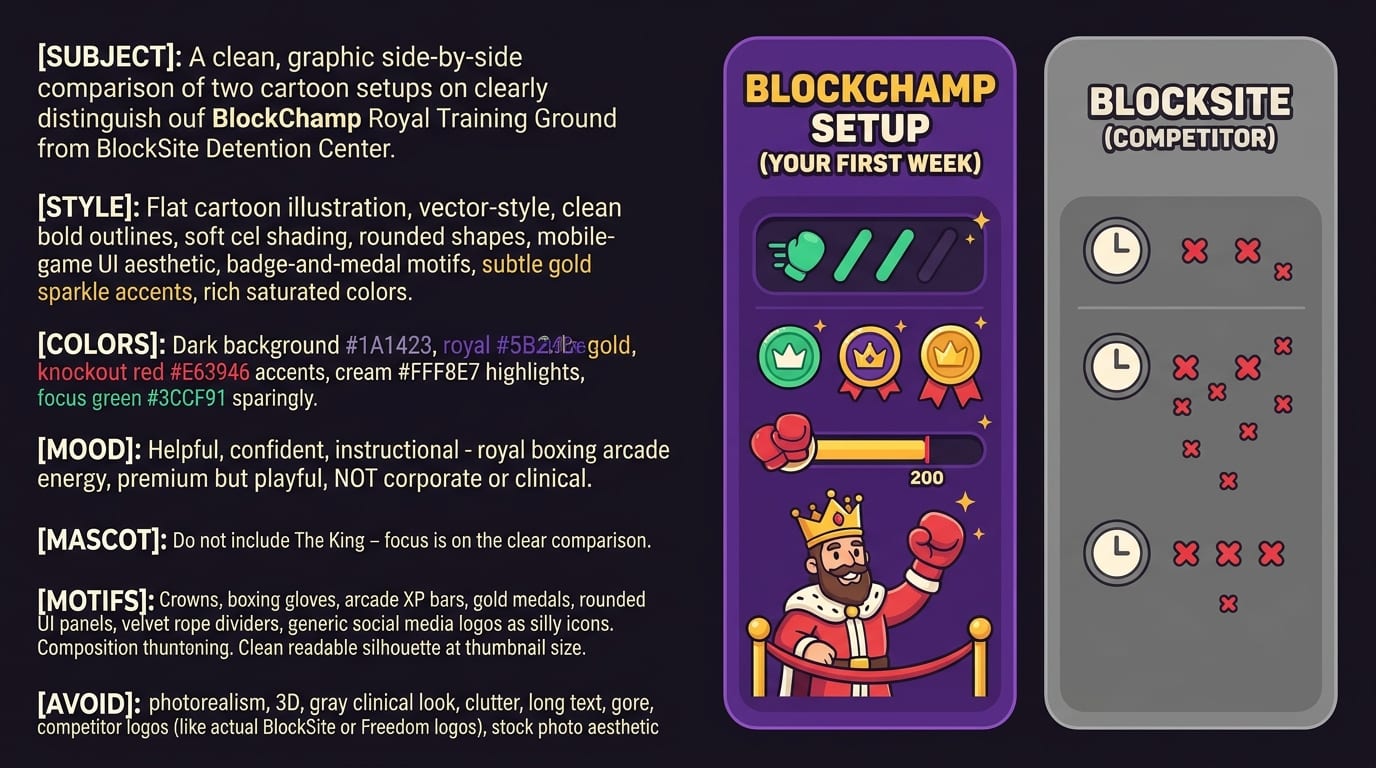
In the BlockChamp vs BlockSite comparison, there is no universal winner. BlockSite may be the better fit if its current platform coverage and controls suit your needs and you prefer a more conventional blocking experience. BlockChamp may be a better fit if you work in Chrome and want blocking combined with XP, levels, badges, reign tracking, and a bit of theatrical accountability from a judgmental royal boxer.
Before choosing, confirm platform support, plan limits, privacy terms, scheduling, and how easily you can override restrictions. Then ask the question most product pages cannot answer for you: “Will I keep using this when I’m tired and distracted?” The fanciest blocker is no help if it ends up in the digital junk drawer beside the meditation app you opened twice.
If BlockChamp sounds like your kind of focus tool, you can explore it at BlockChamp. Start with a small, realistic block list, defend one focus session, and build from there. Long reigns are nice. A single uninterrupted work block is a pretty good victory too.
Related posts

Blockchamp Vs Blocksite

Blockchamp Vs Cold Turkey Blocker

Best Blocksite Alternative
