
Best Appblock Alternative

If you’re searching for the best AppBlock alternative, you probably don’t need another app that tells you to “use your phone less” while your thumb is already halfway to TikTok. You need a blocker that fits how you actually work: which devices you use, what you want to block, and how much temptation you can resist when the deadline suddenly looks very far away.
AppBlock is one option for restricting apps and websites, but it isn’t the perfect fit for everyone. Some people need stronger controls, some want a simpler setup, and others mainly need to block distracting websites on a computer. This guide compares alternatives by platform, blocking features, flexibility, and motivation—so you can choose a tool that helps you focus instead of becoming one more app you forget to open.
Quick Answers
What makes a good AppBlock alternative?
The right alternative depends on the problem you’re trying to solve. If your time disappears into phone apps, you’ll want mobile controls. If the culprit is a browser tab that keeps opening “just for a second,” a website blocker for your computer may be a better match. And if you regularly disable your own restrictions, look for a tool that adds friction before you can quit.
Before comparing products, decide what “better” means for you. A blocker can be powerful on paper and still fail if it’s irritating to manage or easy to bypass. The best choice is the one you’ll keep using on a normal Tuesday, not just the one you install during a sudden burst of productivity optimism.
- Platform coverage: Does it work on the phone, computer, or browser where you get distracted?
- Blocking options: Can it block specific apps, websites, categories, keywords, or scheduled sessions?
- Resistance to overrides: Can you pause a block instantly, or does the tool make you wait or complete a challenge?
- Ease of use: Can you set up a useful block list without needing a spreadsheet and a ceremonial robe?
- Motivation: Does it provide useful feedback or rewards that help you return to the habit?
- Privacy and cost: Review what information it collects, which features are paid, and whether the price makes sense for your needs.
There’s no universal winner. Someone who needs to keep social media off an iPhone all day has a different problem from a student who keeps opening YouTube on a laptop while studying. Pick the tool based on the distraction and the device, not the fanciest feature list.
Best AppBlock alternative options by use case
1. Freedom: for blocking across multiple devices
Freedom is worth considering if distractions follow you between your phone and computer. It’s designed around blocking sessions and can help users restrict websites and apps across supported devices. That makes it useful for people who start work at a laptop, reach for their phone during a difficult task, and somehow return twenty minutes later having learned the entire history of a celebrity’s houseplants.
Its cross-device approach is the main appeal: instead of treating each screen as an unrelated kingdom, it can help create a more consistent focus routine. Check the current platform support and feature availability before subscribing, because capabilities can vary by operating system and plan.
Best for: People who want scheduled focus sessions across several devices.
Consider if: You need a strong desktop-and-mobile setup and are comfortable configuring sessions in advance.
2. Cold Turkey: for firm desktop website blocking
Cold Turkey is a popular choice for people who want serious blocking on a computer. It offers tools for restricting websites and applications, with scheduling and stricter modes available depending on the product and platform. It’s particularly appealing if your main distraction is a desktop browser and you don’t want a lightweight “are you sure?” prompt standing between you and another hour of Reddit.
Strong restrictions can be useful, but they call for sensible planning. Don’t block a website you need for a work task, then discover that the task requires the website. Build a focused block list, test it, and use locked modes only when you’re confident the schedule and exceptions are right.
Best for: Desktop users who want robust, no-nonsense website and app restrictions.
Consider if: You want strong controls more than playful feedback or a highly gamified experience.
3. Freedom-style browser extensions: for quick, lightweight setup
If you mainly need to stop opening a few tempting websites in Chrome, a browser extension may be enough. Extensions are generally quick to install and can make it easy to add a site while you’re browsing. That convenience matters: the fewer steps between “this is wasting my time” and “block it,” the more likely you are to act before the next video starts autoplaying.
The trade-off is scope. A browser extension may not block distractions in other browsers or in native phone apps. If you can simply switch browsers or grab your phone, a browser-only blocker may be one gate in a kingdom with several open doors. Match the tool to your actual habits rather than the habits you wish you had.
Best for: People whose distractions mostly happen in one desktop browser.
Consider if: You want a low-friction tool and don’t need comprehensive mobile app controls.
4. StayFocusd: for Chrome users who want website limits
StayFocusd is a Chrome extension focused on limiting time spent on distracting websites. It can appeal to users who want a browser-based way to set limits without adopting a larger multi-device system. It’s a practical fit if your problem is a handful of sites that turn short breaks into extended visits.
As with any browser-only option, remember the boundary: a Chrome extension is not the same thing as a system-wide blocker. It may not address distractions in other browsers or apps. If you’re comparing extensions, check how each handles schedules, daily limits, allowed sites, and attempts to change settings. Those details are often more important than a long list of features you’ll never touch.
Best for: Chrome users who want to limit time on specific websites.
Consider if: You’re happy with browser-level controls and don’t need app blocking across devices.
5. BlockChamp: for Chrome focus with a little more personality
BlockChamp is a gamified website blocker for Google Chrome. It lets users block individual sites and categories, and its paid Champion tier adds keyword blocking, recurring schedules, more categories, and unlimited site blocking. The free tier includes up to three sites and two categories, alongside the core progression features.
Instead of making the blocked page feel like a gray office memo, BlockChamp sends The King—the cartoon royal boxer mascot—to deliver a dramatic stare-down. You can earn XP for focus time and resisted attempts to visit blocked sites, build reigns, unlock badges, and track progress. For users who respond better to playful rewards than stern productivity charts, that different feel may make a blocker easier to stick with.
Champion users can also turn on Hardcore Lockdown, which adds a cooldown or a boxing-riddle challenge before turning focus off. The aim is to create a pause between an impulse and an override, not to make a device impossible to use. BlockChamp currently works with Google Chrome; iPhone and Android apps are on the roadmap, not available now.
Best for: Chrome users who want website blocking, categories, and game-like motivation.
Consider if: You want a browser blocker with personality, and Chrome is where your distractions tend to strike.
For a practical companion to choosing focus tools, see this guide to study tools for college students. It covers a broader toolkit that can work alongside a blocker, because website restrictions are helpful—but they can’t take notes for you or explain organic chemistry out of spite.
Compare blockers by platform before you install
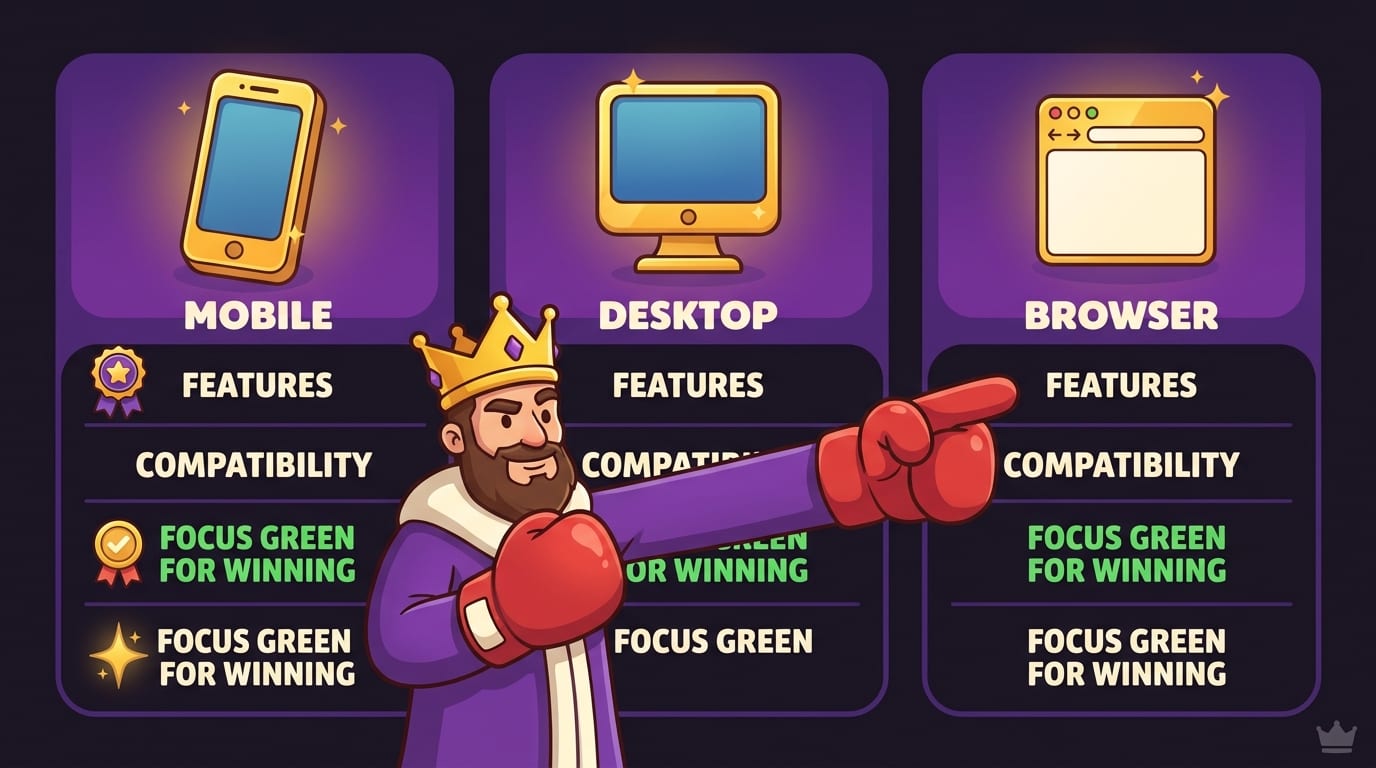
Platform fit is one of the easiest things to overlook. A blocker can have excellent controls and still miss the device you use most. If you lose time to social media apps on your phone, a Chrome extension alone won’t solve the whole problem. If you work mainly at a computer, a mobile-first app may not keep a browser tab from derailing your afternoon.
Use this simple comparison as a starting point, then verify current platform support and plan details on each product’s official site:
- Mostly distracted by phone apps: Prioritize an iOS or Android tool with app-level restrictions and schedules.
- Mostly distracted in Chrome: Consider a browser extension such as BlockChamp or StayFocusd.
- Need restrictions across computer and phone: Look at cross-device options such as Freedom and check which features work on your specific devices.
- Want stronger desktop controls: Compare desktop blockers such as Cold Turkey and review how locked sessions behave.
- Switch between browsers: Consider a system-level option rather than relying only on one browser extension.
Think about where you usually break your own focus rules, too. If the laptop is locked down but your phone is in your hand, the solution may be to put the phone out of reach, enable its built-in focus settings, or choose a service that covers both. No blocker can defeat a distraction you deliberately carry into the room like a tiny glowing accomplice.
Blocking controls: the features that matter most
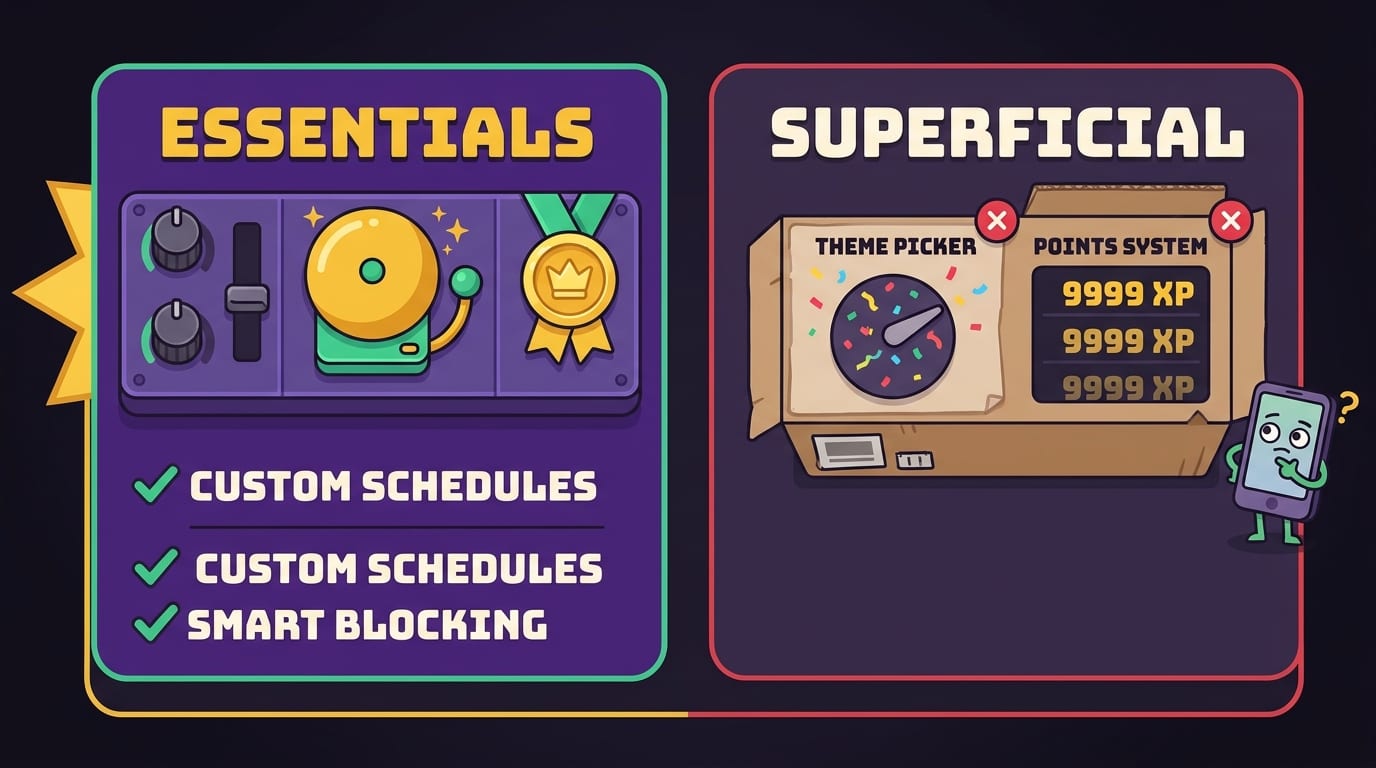
When you compare an AppBlock alternative, focus on the controls you’ll use—not the number of boxes on a pricing page. Start with the basics: can you block an individual website or app, set repeating hours, and create a list of allowed sites for work or study?
Category blocking can make setup faster. Instead of adding social platforms one at a time, some tools let you block a group of sites together. Keyword blocking can help with pages related to a specific topic, but it’s worth checking how it works and whether it might block legitimate pages you need. The more broad the rule, the more carefully you should test it.
For most people, a useful starter configuration looks like this:
- Write down the three distractions that interrupt you most often.
- Block only those sites or apps at first. Avoid declaring war on the entire internet before breakfast.
- Schedule the block around a specific activity, such as a 45-minute study session or your first two hours of work.
- Add essential sites to an allow list if the blocker supports one.
- Review the setup after a few days and adjust anything that blocks useful work or misses a recurring distraction.
Schedules can be especially helpful because they reduce the number of decisions you have to make. A recurring weekday schedule can protect your work hours without requiring you to remember to activate a block every morning. If you need a structured approach to the work itself, you might also enjoy these practical strategies for writing without distraction.
Ease of use matters more than blocker bravado
A restrictive tool is only useful if you can configure it correctly and understand what happens when a block is active. Before committing to a strict setting, check whether you can pause a session, change the schedule, allow a necessary site, or recover from a mistaken block. A little flexibility can prevent a useful focus tool from becoming an accidental obstacle course.
On the other hand, a blocker that lets you cancel every session with one tap may not help much if you tend to override it whenever work gets uncomfortable. This is where delay features, locked sessions, or a deliberate confirmation step can be valuable. Even a short pause can help you ask, “Do I actually need to turn this off, or am I avoiding the spreadsheet again?”
Try to match restriction strength to the situation. Use light limits for casual browsing habits, scheduled blocking for regular work periods, and stronger lock modes for tasks that matter and have clear boundaries. Don’t make a rigid block cover a time when you need to be reachable, and don’t lock away essential tools without testing the setup first.
For help building a broader routine around focused work, read how bestselling authors build productive habits. A blocker can protect your attention; a repeatable routine gives that attention somewhere useful to go.
Motivation, privacy, and price: check the fine print
Different blockers motivate in different ways. Some give you schedules and usage reports. Others emphasize strict sessions, progress charts, or rewards. Think about which feedback encourages you rather than annoys you. If seeing a missed goal makes you feel informed, tracking may help. If it makes you want to uninstall the whole concept of time, you may prefer a more positive progress system.
Gamification is not magic, and badges cannot write your essay for you. But a visible streak, progress bar, or small reward can make consistency feel more satisfying. BlockChamp, for example, gives XP for time spent focused and for resisting blocked pages, with levels, badges, and reign tracking. Its approach is built around making focus feel like progress instead of punishment.
Privacy deserves a look before you install any tool that handles browsing or app activity. Read the product’s privacy policy and check what information it collects, where it’s stored, and whether an account is required for the features you want. Don’t assume every blocker handles data the same way. If privacy language is vague, ask the company or choose a tool that explains its practices clearly.
Then compare cost with the features you’ll actually use. Free versions can be enough for a short list of sites or a basic browser setup. Paid plans may make sense if you need schedules, more block lists, cross-device syncing, or stronger controls. Avoid paying for a dozen features just because the pricing page arranged them in a very persuasive table.

How to choose the best AppBlock alternative for your habits
Use this decision path to narrow the list:
- Identify the main distraction. Is it a phone app, a browser website, streaming, shopping, news, or a combination?
- Identify the device. Choose a tool that works where the habit happens, not only on the device you wish you used more.
- Choose your needed control level. Decide whether you need simple limits, scheduled blocks, or a tougher barrier to changing your mind.
- Test the setup for a week. Use a real work or study schedule and note where the blocker helps or gets in the way.
- Adjust rather than abandon. If the rules are too strict, narrow them. If they’re too easy to bypass, add friction or move your phone out of reach.
Students may want a blocker that protects study sessions while leaving course platforms accessible. Remote workers may value scheduled blocks that switch on during work hours. Writers might benefit from a clean browser and a routine that makes it easier to begin. For more ideas, take a look at this overview of writing apps, especially if your goal is to make distraction-free time count.
One last practical tip: define a success measure you can actually observe. “Be more productive” is vague enough to hide behind. “Finish two 40-minute study sessions before lunch” gives you a clear target. A blocker controls access; your schedule and task list make the time meaningful.
The best blocker is the one you’ll keep using
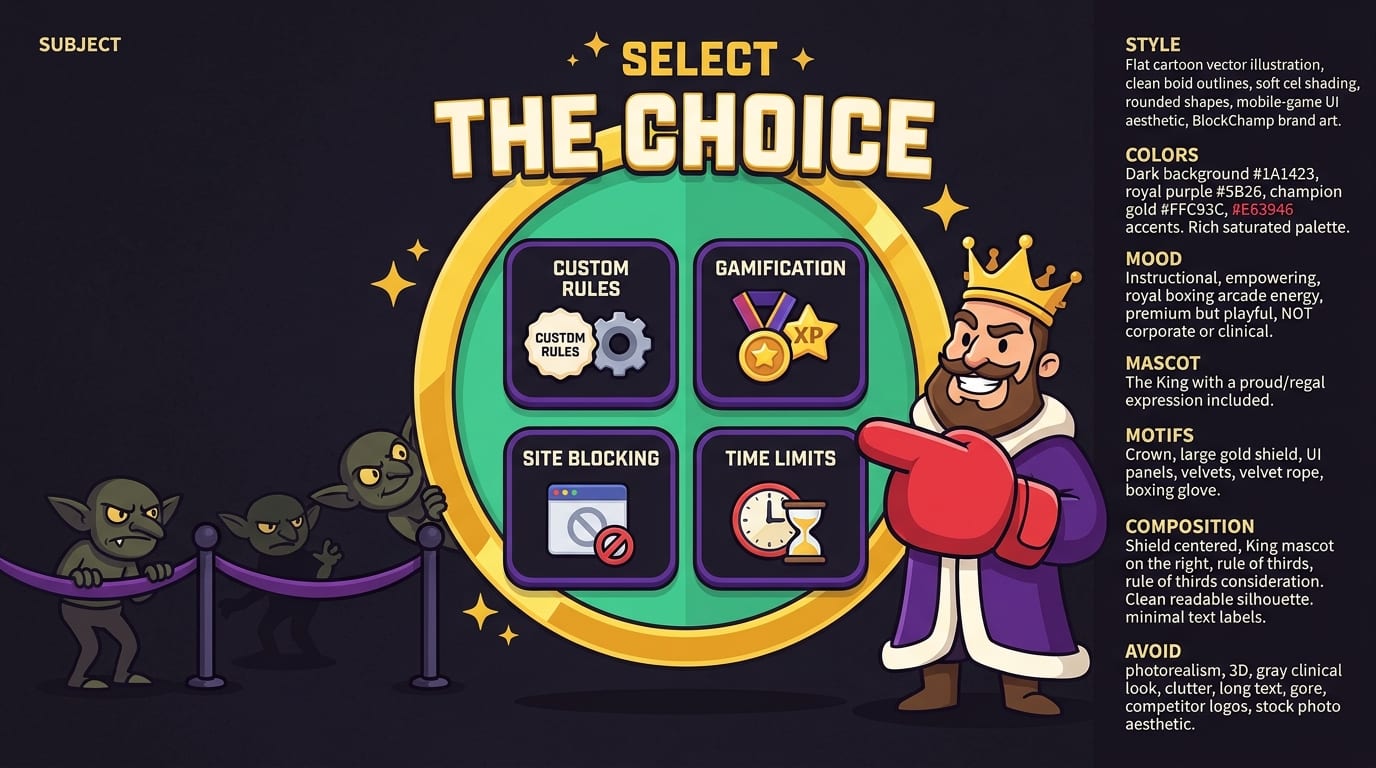
The best AppBlock alternative depends on your platform and your personal weak spots. Freedom may suit people who want sessions across devices. Cold Turkey is an option for firm desktop restrictions. StayFocusd and similar extensions can work for Chrome-based browsing limits. BlockChamp is designed for Chrome users who want site and category blocking with a playful, gamified focus experience.
Choose based on platform coverage, blocking controls, ease of use, privacy, and the kind of motivation that helps you follow through. Then start small: block one or two distractions during one important part of your day. If the system works, expand it. If it doesn’t, adjust the rules before accusing your entire personality of being unmanageable.
If Chrome is where your focus goes to get mugged, explore BlockChamp and see whether its site blocking, category bundles, XP, and royal stare-downs suit your routine. Pick your opponent, defend your time, and give that next work session a fighting chance. Long live your focus.
Related posts

Blockchamp Vs Blocksite

Blockchamp Vs Cold Turkey Blocker

Blockchamp Vs Blocksite
