
Tools To Manage Notifications

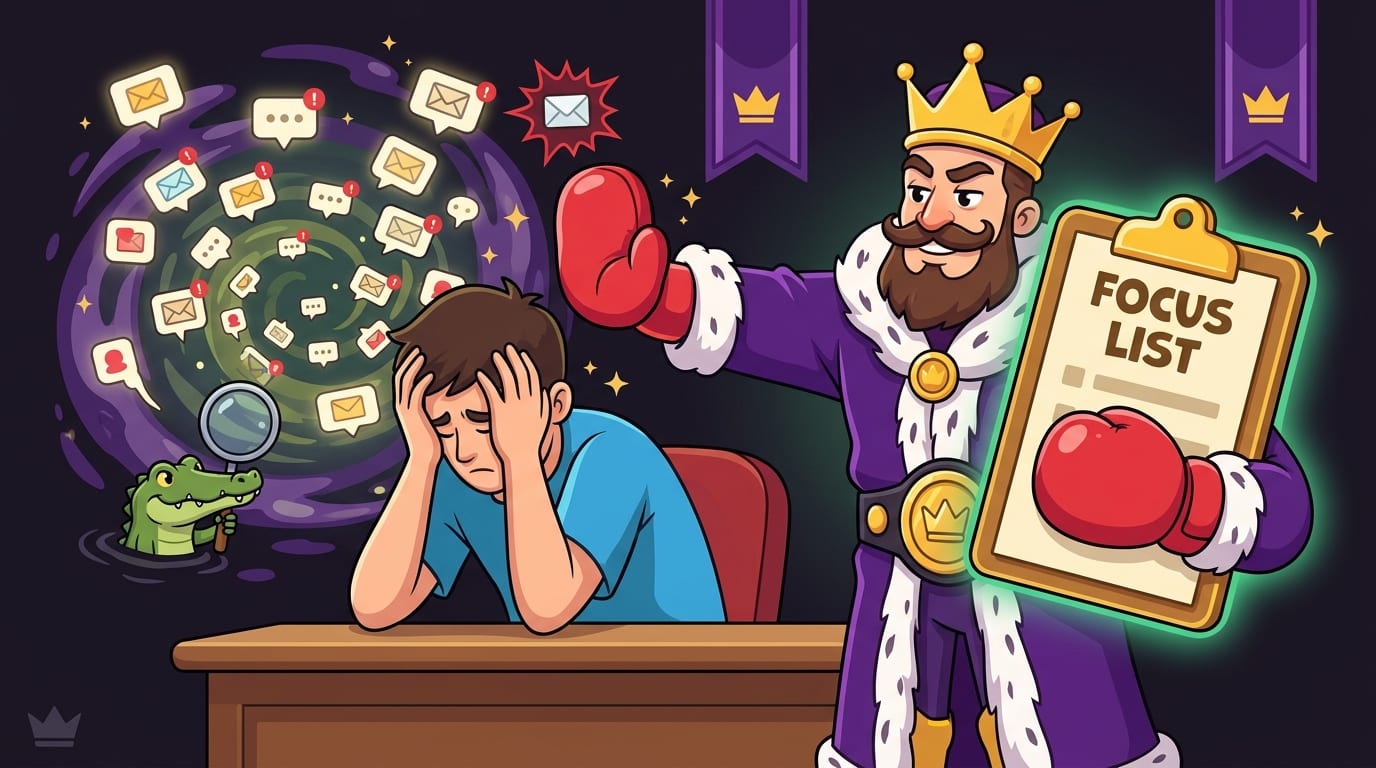
Your phone buzzes. Your laptop pings. Slack coughs politely. Gmail throws confetti because someone replied “Thanks!” to a thread that should have died in 2021. Somewhere, a calendar reminder screams that your next meeting starts in 10 minutes, which is rude because emotionally you are still in the previous meeting.
If that sounds familiar, you need better tools to manage notifications — and, more importantly, a sane system for deciding which alerts deserve your royal attention and which ones should be escorted out of the kingdom by tiny productivity guards.
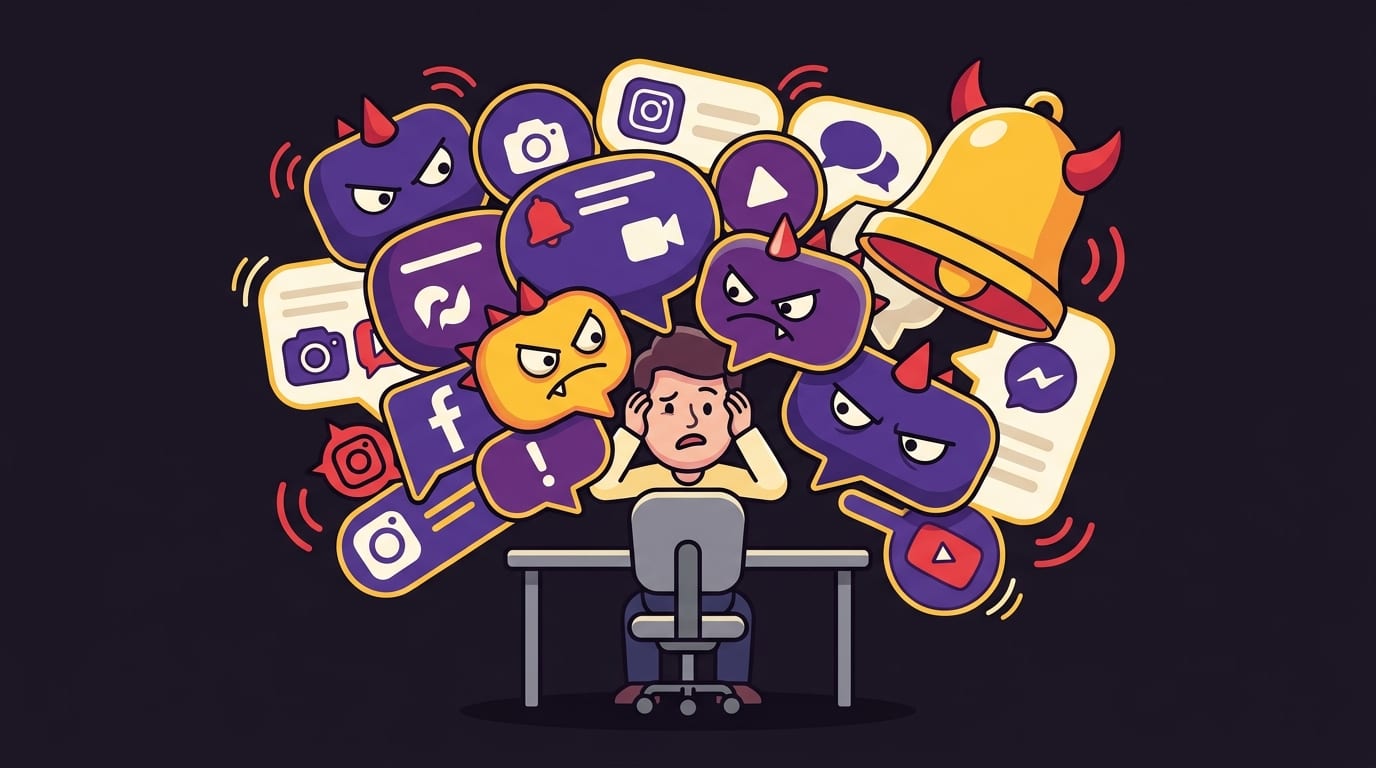
Notifications are not inherently evil. A reminder to join a client call? Useful. A delivery update? Fine. A breaking news alert about “something developing somewhere”? Straight to the dungeon. The problem is that most people treat every notification like it has equal importance, so their brain spends the day playing whack-a-mole with badges, banners, vibrations, pop-ups, and browser tabs wearing little red circles of doom.
This guide breaks down practical strategies and recommended tools to manage notifications across your devices, apps, browser, email, calendar, and team chat. We’ll cover what to turn off, what to keep, how to prioritize alerts, and how to build workflows that reduce interruptions without accidentally missing important things like “your boss needs the file” or “your burrito has arrived.”
Quick Answers
Why Notifications Feel Like Tiny Digital Pigeons Attacking Your Brain
Notifications work because they exploit urgency. A ping tells your brain, “Something changed. Look now.” That might be helpful if your house alarm is going off. It is less helpful when Instagram wants you to know that someone you met once in 2017 posted a blurry photo of soup.
Research has repeatedly shown that interruptions carry a real cognitive cost. The American Psychological Association explains that task switching can reduce productivity because the brain needs time to reorient after each switch, especially when tasks are complex or unfamiliar. In other words, your brain is not a magical octopus. It has limits. You can read more about the science of switching costs from the American Psychological Association’s overview of multitasking.
There is also the recovery-time problem. A widely cited University of California, Irvine study found that it can take people more than 20 minutes to fully return to a task after an interruption. The exact time varies depending on the task and context, but the point stands: one “quick check” can become a productivity tax with teeth. Gloria Mark, one of the leading researchers on attention and digital work, has discussed this pattern extensively in her research on workplace interruptions, including work summarized by UC Irvine researchers on interrupted work.
And the pings are not slowing down. Email, chat tools, social platforms, project management apps, news apps, finance apps, delivery apps, browser permissions, and operating systems all compete for your eyeballs like medieval merchants yelling in a marketplace. “Fresh memes! Hot takes! Someone reacted with a thumbs-up! Your spreadsheet has been viewed!” Lovely. Horrifying.
The goal is not to delete every alert and live in a cave eating focus berries. The goal is to build a notification system that supports your actual priorities. Important information should reach you at the right time. Everything else should wait its turn like a civilized peasant.
The Notification Audit: First, Find the Loudest Goblins
Before you download more tools, do a notification audit. This is the unglamorous but powerful first step. Think of it as checking the castle walls before blaming the dragons.
For one normal workday, pay attention to every notification that interrupts you. You do not need a 47-column spreadsheet unless spreadsheets are your love language. A simple note works. For each alert, write down:
- Which app sent it?
- Was it urgent, useful, or completely unnecessary?
- Did it require action now, later, or never?
- Did it pull you into a distraction loop?
- Could it have been bundled into a daily summary?
After a day or two, patterns appear fast. Maybe Slack is not the problem — three specific channels are. Maybe email is fine, but newsletters are stampeding through your inbox like caffeinated goats. Maybe your biggest issue is browser notifications from websites you barely remember allowing. We have all clicked “Allow” on a pop-up just to make it go away. That was not consent. That was digital hostage negotiation.
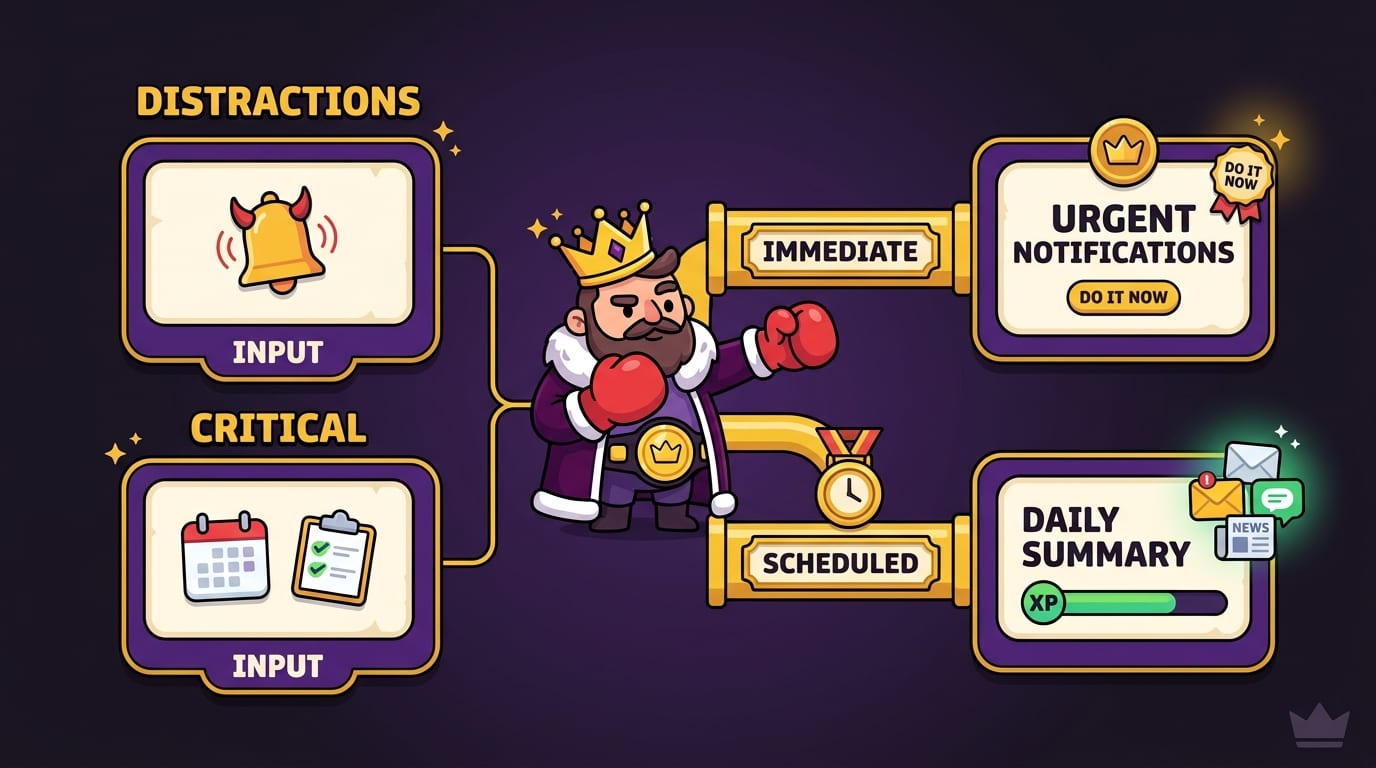
Once you identify your worst offenders, sort notifications into four categories:
- Immediate: alerts that truly need attention now, such as calendar starts, direct messages from key people, security alerts, urgent client issues, or emergency family contacts.
- Scheduled: useful updates that can wait for a review window, such as project comments, routine emails, analytics reports, or task updates.
- Passive: information you might want, but only when you choose to check it, such as social likes, app recommendations, content suggestions, or promotional updates.
- Banished: alerts that add no meaningful value. Goodbye, random news panic. Farewell, “someone posted for the first time in a while.” The kingdom wishes you… silence.
This categorization matters because tools to manage notifications only work when you know what you are managing. Otherwise, you are just installing fancy buckets while the ceiling is still leaking.
Best Built-In Tools to Manage Notifications on Your Devices
The best notification management tools are often already sitting on your phone and computer, judging you quietly. Before paying for anything, squeeze more value out of your operating system settings.
iPhone Focus Modes
Apple’s Focus modes let you create different notification rules for work, sleep, personal time, driving, fitness, and custom scenarios. You can allow notifications from specific people and apps while silencing everything else. Apple’s official guide to using Focus on iPhone explains how to customize modes and share Focus status.
Useful setups include:
- Deep Work: allow calendar, phone calls from favorites, and one team chat app; silence social, news, shopping, and entertainment.
- Study: allow notes, learning apps, and emergency contacts; block everything that smells like TikTok chaos.
- Evening: allow family and close friends; mute work apps so your brain can stop wearing a tiny corporate tie.
Android Do Not Disturb and Digital Wellbeing
Android users can use Do Not Disturb, notification channels, and Digital Wellbeing settings to control alerts by app and category. Notification channels are especially powerful because you can silence certain types of alerts inside an app without muting the whole app. For example, you might keep direct message notifications but turn off promotional alerts.
Google’s Android notification management help walks through controlling app notifications and Do Not Disturb options.
Windows Focus Sessions and macOS Focus
On desktop, use Focus Assist or Focus Sessions on Windows and Focus settings on macOS to silence interruptions during work blocks. This is crucial because desktop notifications often interrupt the work you are actively doing. A phone buzz is annoying; a banner sliding over your writing while you are mid-sentence is a duel invitation.
Pair desktop focus modes with calendar-based scheduling. For example, turn on strict notification rules from 9:00 to 11:00 a.m. for deep work, relax them during admin time, then tighten them again in the afternoon. Your attention should have office hours.
Email Tools: Because Your Inbox Is Not a To-Do List, It’s a Swamp With Search
Email notifications are sneaky because email feels “professional,” so we tolerate abuse from it. But an inbox ping is still an interruption. Just because the distraction is wearing a blazer does not mean it deserves the throne.
Start with a simple rule: turn off instant email notifications unless your role truly requires immediate response. Most people do not need to know the exact second a newsletter arrives or when a coworker replies “Sounds good.” Batch email into scheduled windows instead.
Recommended tools and features:
- Gmail filters and labels: route newsletters, receipts, reports, and low-priority updates away from the primary inbox.
- Outlook rules: automatically sort mail by sender, keyword, project, or priority.
- SaneBox: uses filtering to move less important emails out of your inbox so important messages are easier to spot.
- HEY or Superhuman: more opinionated email tools for people who want stricter inbox workflows and faster triage.
- Unroll.Me or native unsubscribe tools: reduce newsletter clutter, though always review privacy policies before granting mailbox access.
A practical email notification setup looks like this:
- Disable all email banners and sounds.
- Allow badge counts only if they do not emotionally bully you.
- Create VIP alerts for a short list of critical senders.
- Check email at set times: for example, 10:30 a.m., 1:30 p.m., and 4:30 p.m.
- Use filters so newsletters and automated reports land in folders for later review.
If your inbox is one of your biggest time leaks, you may also enjoy our broader guide to time management strategies and tools for the age of distraction. It pairs nicely with email batching, calendar blocking, and not letting your inbox drive the carriage straight into the moat.
Team Chat Tools: Tame Slack, Teams, and Discord Before They Form a Government
Team chat can be useful. It can also become an always-on carnival where every channel thinks it is the main character. The goal is to keep fast collaboration without letting chat become a productivity woodchipper.
For Slack, Microsoft Teams, Discord, and similar tools, adjust notifications at the channel level. This is where the magic happens. Do not accept the default setting where every channel gets to yell at you. Defaults are designed for engagement, not serenity.
Use this framework:
- Direct messages: notify, but consider limiting to work hours.
- Mentions: notify when someone tags you or a small team you belong to.
- Critical channels: notify for mentions only, unless you are on call.
- General channels: mute or digest. “General” is where focus goes to get pecked by ducks.
- Social channels: mute completely and check manually during breaks.
Slack’s own documentation explains how to configure Slack notifications, including keywords, channel-specific settings, and Do Not Disturb schedules. Microsoft also provides guidance for managing notifications in Microsoft Teams.
One underrated tactic: set expectations with your team. Notification tools help, but culture matters. If every message is treated as urgent, no tool can save you. Use status messages like “Deep work until 11:00 — call if urgent” or “Writing sprint, replies after lunch.” This is not rude. This is attention hygiene. Fancy phrase. Very crown-worthy.
For teams trying to balance collaboration and focus, our post on productivity tools for team collaboration covers more ways to keep work moving without turning everyone’s brain into soup.
Browser and Website Notification Tools: Stop Letting Random Sites Ring the Bell
Browser notifications are among the most chaotic alerts because they often come from websites, not apps you intentionally installed. News sites, shopping sites, productivity apps, social networks, and random web tools can all ask permission to send notifications. Say yes too often and your browser becomes a town crier with Wi-Fi.
Start by reviewing Chrome, Safari, Firefox, or Edge notification permissions. Revoke access for anything nonessential. In Chrome, go to Settings, then Privacy and security, then Site settings, then Notifications. From there, remove websites from the “Allowed” list and consider blocking future notification requests entirely.
Next, control the sites that trigger distraction loops. Notifications are one problem; the bigger problem is what happens after the notification. You click one Reddit alert, then suddenly it is 38 minutes later and you are reading a debate about whether a raccoon could defeat a goose in a parking lot. Important? Perhaps culturally. Productive? No.
This is where BlockChamp fits naturally into your notification management stack. BlockChamp is a gamified website blocker for Google Chrome that helps you block distracting websites, keywords, and categories. If notifications are the knock at the castle gate, distracting websites are the invaders trying to throw a rave in the throne room.
With BlockChamp, you can block specific sites like YouTube, Reddit, Instagram, TikTok, or X/Twitter. You can also use category bundles for Social Media, Video & Streaming, News, Shopping, Gaming, Gambling, Adult, and AI Distractions. Pro users can set Focus Schedules so blocks activate automatically during work or study hours. That means even if a notification tempts you, the site itself can be blocked before the scroll goblin wins.
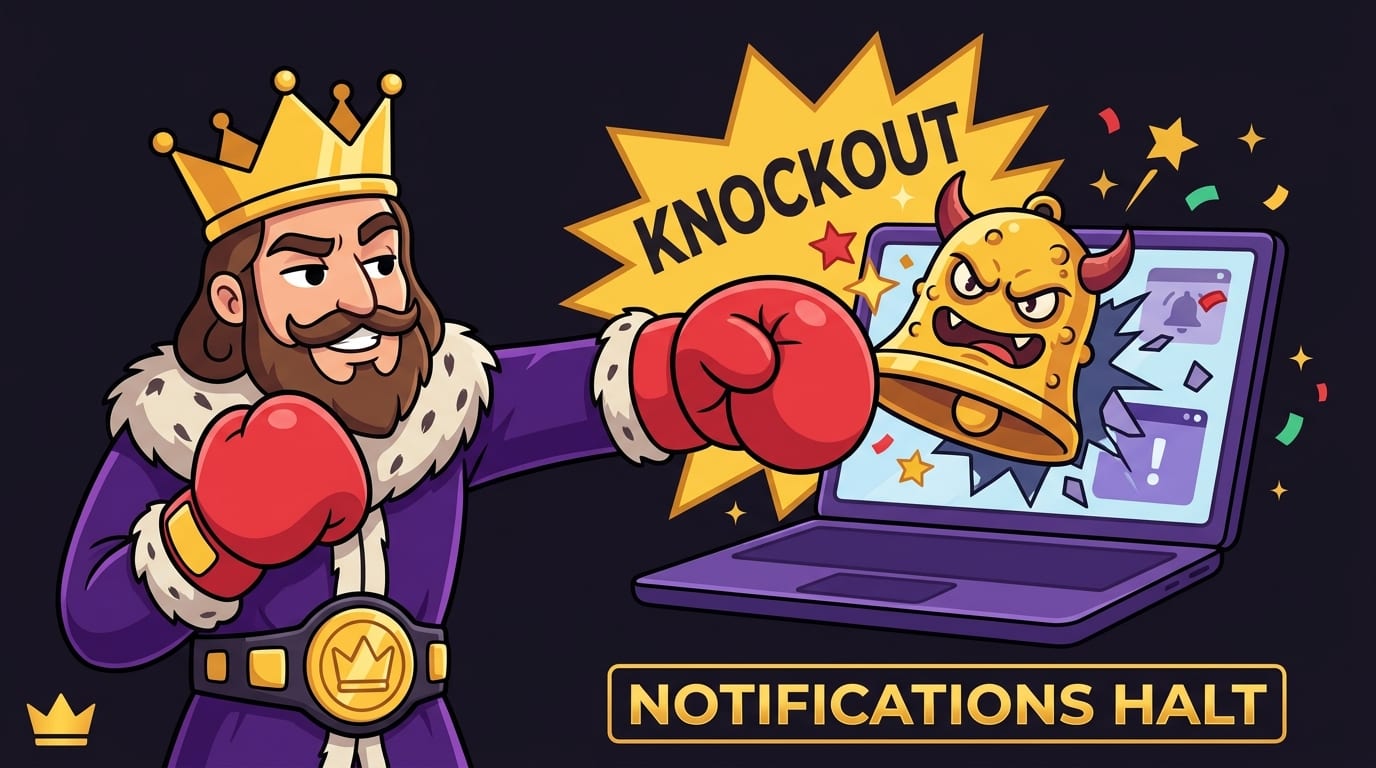
And if you try to visit a blocked site anyway? You get The Stare-Down: a full-screen block page where The King, BlockChamp’s royal boxer mascot, judges your choices with the energy of a tiny crowned bouncer. It is funny, memorable, and more effective than a sad gray “access denied” screen. Every survived stare-down earns XP, helping you level up and build a focus reign. Notifications may tempt you, but The King has gloves.
Calendar and Task Notifications: Keep the Useful Pings, Ditch the Confetti Cannon
Calendar and task notifications are some of the few alerts worth keeping, but only when configured properly. A calendar reminder five minutes before a meeting is useful. Three reminders, two emails, a mobile push, and a desktop banner for the same meeting is less “organized professional” and more “air raid siren with agenda items.”
For calendars, standardize your reminder defaults:
- Meetings: one reminder 10 minutes before, or 5 minutes if your schedule is tight.
- Travel or in-person events: one reminder the day before and one based on travel time.
- Deep work blocks: optional start reminder, but no repeated alerts.
- Deadlines: reminders well before the due date, not just when the deadline is already breathing on your neck.
Task managers like Todoist, TickTick, Asana, ClickUp, Trello, and Notion can also become noisy if every comment, due date, mention, and status change triggers a notification. Decide which events actually need alerts. For many people, task notifications should be limited to:
- Tasks due today
- Tasks assigned directly to you
- Comments that mention you by name
- Overdue high-priority work
Everything else can live inside the tool until your scheduled review time. The point of a task manager is to reduce mental clutter, not become a second inbox wearing a fake mustache.
If procrastination is the reason you keep relying on chaotic reminders, check out our guide to six tools to tackle time management and procrastination. A better task system plus fewer notifications is a strong combo. Like sword and shield, but with fewer dragons and more due dates.
Focus Apps and Notification Blockers Worth Considering
Once your built-in settings are under control, specialized tools can help you go further. The best tools to manage notifications usually fall into a few categories: focus modes, app blockers, website blockers, inbox managers, and automation tools.
1. BlockChamp for Browser Distractions
Use BlockChamp when your biggest issue is not just receiving notifications, but obeying them like a loyal little scroll servant. It helps you block distracting websites in Chrome and turn focus into a game with XP, levels, badges, streak-like reigns, and a leaderboard. The free tier lets you block up to three sites and enable two categories, while Champion Pro unlocks unlimited sites, all eight categories, keyword blocking, recurring schedules, Hardcore Lockdown, and sync.
Hardcore Lockdown is especially useful if you keep disabling your own tools. Pro users can require a cooldown timer or complete The King’s boxing riddle before turning focus off. Is it slightly ridiculous? Yes. That is why it works. Impulses hate friction.
2. Freedom for Cross-Device Blocking
Freedom is a popular app and website blocker that works across multiple platforms. It is useful if you want broad blocking across desktop and mobile devices. It is more traditional in tone than BlockChamp, but strong for people who want scheduled sessions and cross-device coverage.
3. Cold Turkey for Strict Desktop Blocking
Cold Turkey is known for strict blocking on desktop. It can be helpful for people who need heavy-duty enforcement. The vibe is less royal boxing match, more “steel door has closed,” but sometimes that is exactly what your distracted goblin brain needs.
4. One Sec for App-Opening Friction
One Sec adds a pause before opening distracting apps. That tiny interruption can be enough to make you ask, “Do I actually want to open this?” Often the answer is no. Sometimes the answer is “yes, but I resent being perceived.” Still useful.
5. Zapier or Make for Notification Automation
Automation tools can route notifications intelligently. For example, you can send important form submissions to Slack, collect low-priority updates in a spreadsheet, or create task reminders only when certain conditions are met. This is great for reducing duplicate alerts across tools.
6. RescueTime or Rize for Awareness
Time-tracking tools show where your attention goes. They do not necessarily manage notifications directly, but they reveal which apps and websites hijack your day after pings pull you in. Awareness is not the whole battle, but it is the map. Hard to defend the kingdom if you do not know where the goblins live.
For more support with stress and digital overload, you may also like our roundup of wellbeing tools to reduce stress. Notification control is not just productivity hygiene; it is nervous-system kindness. Very noble. Very “sips tea on the balcony.”
A Simple Notification Workflow You Can Set Up Today
Here is a practical workflow you can implement in under an hour. No incense. No monastery. No productivity guru whispering “optimize” into a ring light.
- Turn off non-human alerts first. Disable notifications from shopping apps, games, streaming apps, news apps, social apps, and promotional emails. If no real human needs your attention, it probably does not need to buzz.
- Create VIP lanes. Allow alerts from your manager, key clients, close family, school contacts, or whoever genuinely matters. Keep the VIP list short. If everyone is VIP, nobody is VIP. That is just a nightclub with bad security.
- Batch communication. Check email and team chat at planned times when possible. Use status messages so people know when you are available.
- Schedule focus blocks. Use calendar blocks plus Do Not Disturb or Focus modes. During those blocks, silence everything except true emergencies.
- Block temptation paths. Use BlockChamp or another website blocker to prevent notification-triggered rabbit holes during focus time.
- Review weekly. Every Friday, spend five minutes asking: What interrupted me most? What can I mute, filter, batch, or block next week?
A good notification workflow should feel boring in the best possible way. Important things arrive. Unimportant things wait. Your brain stops flinching every six minutes like a startled squirrel in business casual.
Special Case: ADHD, Anxiety, and Notification Overload
For people with ADHD, anxiety, or high stress, notifications can be especially disruptive. Alerts do not just interrupt a task; they can derail the entire mental train, steal working memory, and create a constant sense of unfinished business. It is not laziness. It is cognitive load wearing tap shoes.
If you struggle with attention regulation, consider more aggressive defaults:
- Keep your phone out of sight during deep work.
- Use grayscale mode to make apps less visually tempting.
- Turn off notification previews so messages do not hijack your curiosity.
- Use one trusted capture system for tasks instead of scattered reminders.
- Block high-dopamine websites during work or study sessions.
- Use body doubling, timers, or focus rooms if silence alone does not work.
Our post on ADHD focus struggles and constant notifications goes deeper into why pings can be so hard to ignore and what to do about it. The key is not to “just try harder.” That advice belongs in the dungeon. Build an environment that makes the focused choice easier and the distracted choice harder.
BlockChamp can help here because it adds both friction and reward. Instead of relying only on willpower, you can block distracting categories, use schedules, collect XP, build a reign, and let The King roast you when you wander toward a blocked site. Sometimes the brain needs structure. Sometimes it needs a cartoon monarch in boxing gloves saying, “Absolutely not, champ.”
Common Notification Mistakes That Keep You Stuck
Even smart people make notification mistakes. Smart people also lose 45 minutes to “researching ergonomic chairs” after one shopping alert, so let us stay humble.
Mistake 1: Treating All Apps Equally
Your banking app and a meme app should not have the same notification privileges. Rank apps by actual importance. Most apps should be pull-based, meaning you open them when you choose, not push-based, meaning they summon you like a tiny app wizard.
Mistake 2: Leaving Badges On Everywhere
Badges are sneaky. Even without sound, red dots create mental pressure. If you compulsively clear badges, turn them off for nonessential apps. A badge count of 7,342 unread emails is not information. It is a haunted house.
Mistake 3: Using Notifications as Memory
If you rely on random alerts to remember responsibilities, your system is fragile. Use a calendar for time-specific commitments and a task manager for action items. Notifications should support the system, not be the system.
Mistake 4: Not Separating Work and Personal Time
If work notifications reach you 24/7, your brain never fully clocks out. Use schedules, Focus modes, and app rules to create boundaries. Your evening does not need to be haunted by a Teams ping named “quick question.” Quick questions are rarely quick. They are gremlins with punctuation.
Mistake 5: Forgetting the Browser
People often clean up phone notifications while ignoring Chrome, where browser tabs, web apps, and allowed sites keep yelling. Review site permissions and block distracting sites during focus hours. The browser is where many notification impulses become full-blown procrastination quests.
How to Choose the Right Tools to Manage Notifications
The best tools to manage notifications depend on your main pain point. Do not choose based on what looks shiny. Choose based on where your attention leaks.
If your phone constantly interrupts you, start with iPhone Focus modes or Android Do Not Disturb. If your inbox is the problem, use filters, labels, rules, and scheduled email checks. If team chat is the villain, configure channel-level notifications and team expectations. If browser distractions are your downfall, use BlockChamp to block the sites and categories that keep ambushing your workday.
Here is a quick decision guide:
- Too many phone pings? Use Focus modes, notification summaries, and app-level controls.
- Email chaos? Use filters, VIP senders, unsubscribe tools, and email batching.
- Slack or Teams overload? Mute channels, notify only for mentions, and set Do Not Disturb hours.
- Social media rabbit holes? Use BlockChamp to block distracting websites and categories during focus time.
- Weak impulse control? Use scheduled blockers and friction tools like Hardcore Lockdown.
- Unclear where time goes? Use time tracking tools like RescueTime or Rize for awareness.
One tool will not solve everything. You are building a stack: operating system settings, communication rules, email filters, calendar discipline, and website blocking. Together, they create a quieter digital environment where your attention can stop wearing a helmet.
Final Round: Silence Is a Productivity Feature
Notifications are not your boss. They are suggestions wearing sound effects. Some deserve attention. Most deserve a scheduled review, a filter, a mute button, or a dramatic royal eviction.
The winning strategy is simple: audit your alerts, prioritize what matters, batch what can wait, block what derails you, and review regularly. Use built-in tools like Focus modes and Do Not Disturb. Configure email, calendar, and chat apps so they support your work instead of body-slamming it. Then add specialized tools where needed — especially if browser distractions keep turning innocent pings into full-blown scroll festivals.
If distracting websites are part of your notification problem, give BlockChamp a try. It is a Chrome website blocker that turns focus into a game, complete with XP, badges, reigns, a leaderboard, and The King — a tiny royal boxer who will happily stare you down when you try to sneak into YouTube during deep work.
Defend the throne. Crush the scroll. Let the important stuff through, and send the rest of the noisy peasants back outside the castle gates. Your attention is the kingdom, champ. Rule it like you mean it.
Related posts

Finding Focus For Fiction Writing

Learning To Focus In A Digital World As A Creative

Finding Focus For Personal Growth
